

Your takeaways
- Invite collaborators through YouTube Studio using their individual Google Accounts; never share your channel password or verification codes.
- Choose the narrowest role that covers the person’s actual tasks, and verify its current capabilities in the permissions interface.
- Write down upload, publishing, and review boundaries, then test access with a draft or low-risk task.
- Track production costs and time by deliverable and stage, and set an upload schedule your team can sustain.
- Remove former collaborators from YouTube and separately revoke their access to other production tools.
How to Grant Access to Your YouTube Channel for Editors and Managers?
You can invite editors and managers through YouTube Studio’s channel permissions without giving them your Google Account password. Channel permissions let an owner give another Google Account specific access to manage a YouTube channel. Use the person’s own Google Account, then choose a role that matches the work you’re delegating.
That process suits creators, entrepreneurs, and faceless-channel owners who need help with editing, uploading, captions, analytics, or publishing. The steps below explain how to send an invitation, choose a role, set approval boundaries, and remove access when a working relationship ends.
How to Grant Access to Your YouTube Channel for Editors and Managers starts with the channel’s permissions settings, not a shared login. Sign in to YouTube Studio using an account that can manage permissions, check that the intended channel is selected, and invite each collaborator at the Google Account email they’ll use for channel work.
That distinction matters when you manage more than one channel or work with a freelancer who has separate personal and business Google Accounts. An invitation sent to the wrong address may be accepted under an account the person doesn’t normally use, creating confusion when they try to access Studio.
For How to Grant Access to Your YouTube Channel for Editors and Managers, keep the access decision tied to a specific responsibility. An editor who prepares videos may need upload and editing permissions; a contractor who only writes captions may need less. Don’t grant broad control simply because it’s faster to select.
Before inviting anyone, decide what they’re expected to deliver and what must remain under your control. The role describes available actions in YouTube, while your production brief and approval rules explain how the team should use those actions.
- Invite collaborators individually using their own Google Accounts.
- Choose a permission based on required channel actions.
- Agree in advance on who can schedule or publish videos.
- Review and remove access when the work no longer requires it.
How to Grant Access to Your YouTube Channel for Editors and Managers is therefore both a permissions task and a workflow decision. You’ll get safer delegation when you know what the collaborator needs to do, what they must not do, and who checks the work before it goes live.
Keep How to Grant Access to Your YouTube Channel for Editors and Managers as a repeatable onboarding process rather than an informal handoff. The following sections show how to send the invitation, select a suitable role, and close access cleanly at the end of a project.
How to Grant Access to Your YouTube Channel for Editors and Managers in YouTube Studio?
To invite a collaborator, open YouTube Studio for the correct channel, go to Settings and then Permissions, choose Invite, enter the person’s Google Account email, select a role, and send the invitation. The recipient must accept it using the invited account before they can use the granted access.
- Sign in to the correct channel. If you manage multiple channels, confirm the channel name and profile image before changing settings.
- Open Settings. In YouTube Studio, select the settings option in the navigation.
- Select Permissions. Review the current access list before adding another person.
- Choose Invite. Enter the collaborator’s Google Account email, not a shared team inbox unless that is genuinely the account they use.
- Select a role. Read the on-screen description and choose the narrowest option that supports the assigned work.
- Send the invitation. Check both the channel and email address before confirming.
- Ask the recipient to accept. Have them check the correct Google Account if the invitation doesn’t appear or access fails.
Menu labels and available options can differ if a channel uses Brand Account roles instead of YouTube Studio channel permissions. Don’t assume that a role with a similar name grants identical actions in both systems; follow the descriptions displayed for the channel you’re managing.
When following How to Grant Access to Your YouTube Channel for Editors and Managers, never ask a collaborator to send you their password or a Google verification code. They should sign in themselves and accept the invitation. Sharing login credentials can expose more than the channel and makes it harder to identify who performed an action.
If an invitation appears stuck, open Permissions and check its status. Confirm that the recipient is signed into the exact Google Account you invited; a person may have several accounts open in the same browser. If the address is wrong or the invite is outdated, remove or cancel that invitation as the interface allows, then send a fresh one to the correct account.
Use How to Grant Access to Your YouTube Channel for Editors and Managers as a final-send checklist: verify the channel, verify the email, verify the role, and only then submit. After acceptance, ask the collaborator to confirm that the expected Studio area is available.
This simple check catches common onboarding problems before a production deadline. How to Grant Access to Your YouTube Channel for Editors and Managers should end with a confirmed invitation status and a clear record of who has access, rather than an assumption that the person can sign in.
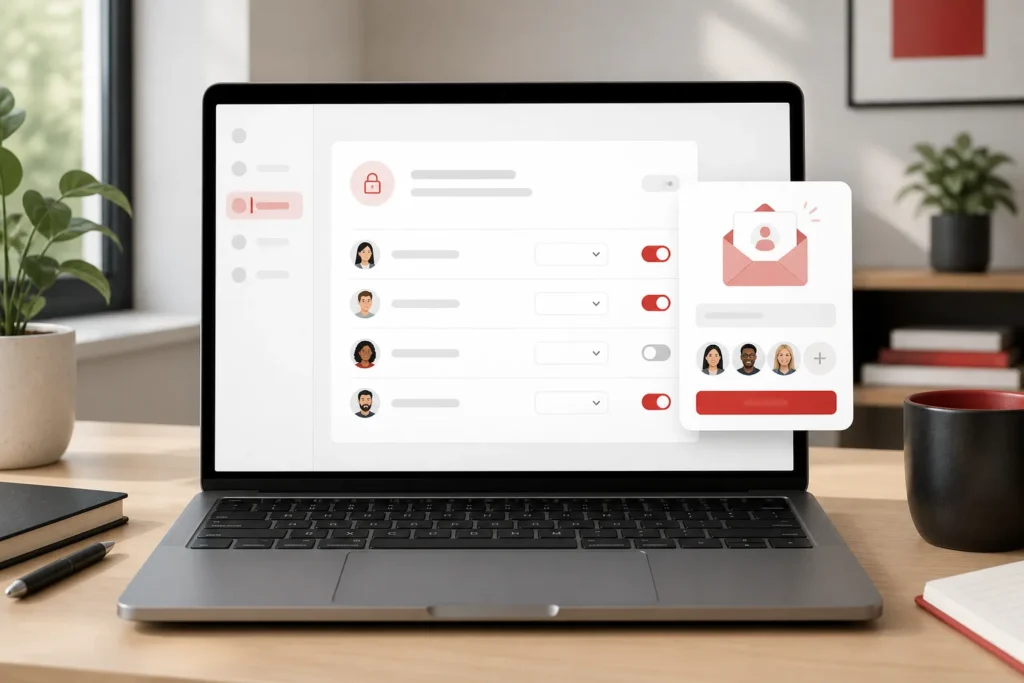
Which YouTube permission role should you give an editor or manager?
Give each collaborator the lowest level of access that still lets them complete their assigned work, and reserve owner-level access for people who genuinely need control of the channel. Role names and available actions can change, so check the descriptions in YouTube Studio before inviting someone instead of relying on an old checklist.
The table is a starting point for matching work to access. Treat the on-screen role description as authoritative for your channel, especially if the channel uses Brand Account roles or YouTube updates its permissions.
| Role | Suitable work | Key limits |
|---|---|---|
| Owner | People who need broad control and responsibility for the channel. | Broad access is high risk; reserve it for trusted people who need ownership-level control. Check the interface for exact capabilities. |
| Manager | Coordinating channel operations and a wider set of delegated tasks. | May have substantial control, but should not be treated as identical to owner. Verify which sensitive actions are permitted. |
| Editor | Preparing uploads, editing video details, and supporting publishing workflows. | May not have access to every management function; check the role description before assigning duties. |
| Editor (limited) | Editing or preparing content where a more restricted editor role is sufficient. | Some actions available to Editor may be withheld. Confirm upload, publishing, and other task access in Studio. |
| Subtitle Editor | Adding or managing subtitles and captions. | Intended for subtitle work, not general channel management. Confirm the precise caption permissions shown. |
| Viewer | Reviewing channel information or analytics without making changes. | Viewing access does not provide the editing actions needed to prepare content. |
| Viewer (limited) | Reviewing information with more restricted visibility. | Some information available to Viewer may be unavailable. Check what the collaborator can see. |
For example, a video editor who uploads a draft and adjusts its title or description may need an editor role, while a subtitle specialist may only need Subtitle Editor access. Someone reviewing performance for a monthly report may be able to work with Viewer access. Don’t grant an editor role to an analytics reviewer simply because it’s the first option that sounds familiar.
Use How to Grant Access to Your YouTube Channel for Editors and Managers to match the permission to the actual deliverable, not the job title. “Producer” could mean anything from organizing files to publishing videos; list the actions the person will perform before choosing a role.
- Write down the person’s deliverables, such as a finished edit, captions, or an analytics summary.
- Identify the minimum YouTube actions needed to deliver each item.
- Choose the narrowest role whose on-screen description covers those actions.
- Test access with a low-risk task before the person handles a live upload.
Permissions and available actions can change, and similar role labels don’t guarantee identical capabilities across permission systems. For How to Grant Access to Your YouTube Channel for Editors and Managers, check the current role description during setup and revisit it if the collaborator’s duties expand.
When a task doesn’t fit neatly into one role, separate responsibilities where practical. For instance, an editor can prepare a draft while you retain final publishing approval; a caption contractor can work on subtitles without receiving broader channel access.
How to Grant Access to Your YouTube Channel for Editors and Managers works best when the selected role is tested against the real task. A quick draft upload or caption handoff can reveal a missing permission before the production schedule depends on it.
What can channel editors and managers do, and what should they not do?
A YouTube role determines which channel actions a collaborator can perform; it doesn’t transfer ownership or remove the owner’s responsibility for granting access and reviewing sensitive work. Editors and managers may support uploads, metadata, subtitles, analytics, or publishing coordination, but the actions available depend on the role shown in YouTube Studio.
A typical workflow might have an editor prepare a video upload, enter a working title and description, and leave the video as a draft for review. A subtitle specialist can handle captions, while an analytics reviewer can examine available channel information and report findings. Confirm that each assigned task fits the person’s actual role before production begins.
Technical access is only half the arrangement. Put approval boundaries in writing so the collaborator knows whether they can upload drafts, schedule videos, publish publicly, change channel settings, or respond to comments. If you want to check claims, links, thumbnails, or audience-facing copy before release, say so explicitly.
For How to Grant Access to Your YouTube Channel for Editors and Managers, agree on who owns each handoff. One practical arrangement is for a freelancer to upload a draft and notify the channel manager; the manager checks the video, metadata, thumbnail, and publishing status before it goes public.
Before access is granted, use this checklist:
- Google Account: Confirm the exact account the collaborator will use.
- Assigned duties: List deliverables and the actions needed in YouTube.
- Permission level: Match the role to those actions and check its description.
- Communication: Decide where questions, handoffs, and urgent issues should go.
- Review process: Name the person who approves publishing and define what must be checked.
Collaborators don’t need the channel password to work through channel permissions. They can use their own Google Account and accept an individual invitation. Avoid shared passwords and verification codes: besides increasing security risk, shared credentials make it difficult to tell which person made a change.
How to Grant Access to Your YouTube Channel for Editors and Managers should include a clear rule for exceptions. If an editor discovers a factual issue or a copyright concern, for example, they should know whether to pause the upload and contact the approver rather than publishing on their own judgment.
Keep those rules alongside the production brief, not just in a one-time chat. As a contractor takes on different work, review the role and approval process together. How to Grant Access to Your YouTube Channel for Editors and Managers is safer when permissions and working expectations remain aligned.
Ultimately, How to Grant Access to Your YouTube Channel for Editors and Managers gives people the ability to do assigned work; it doesn’t replace editorial judgment. Retain final say over sensitive changes unless you have deliberately delegated that responsibility to a trusted person.

How should a faceless channel manage outsourced video production?
Match YouTube permissions to each person’s production responsibility, and manage briefs, asset handoffs, deadlines, and approvals in a separate workflow. That separation lets a freelancer receive the access needed for a defined task without making YouTube Studio the place where every production instruction, revision, and approval has to live.
A repeatable faceless-video workflow can move through these stages:
- Niche and video-idea research: Define the audience, topic, and purpose of the video.
- Scriptwriting: Provide a brief, structure, source requirements, and intended length.
- AI voiceover: Select a voice and review pronunciation, pacing, and tone.
- Footage: Gather suitable stock clips or AI-generated visuals, and keep track of asset sources and usage terms.
- Editing: Assemble narration, visuals, music, captions, and transitions to match the brief.
- Thumbnail creation: Produce a thumbnail that accurately represents the video and fits the channel’s style.
- Upload preparation: Add the video, title, description, thumbnail, and other required details.
- Final approval: Review the finished package and confirm its publishing status.
For example, a freelance editor can receive only the access needed to upload a draft if the selected role supports that task. The channel owner or designated manager can then check metadata, thumbnail, factual claims, and publishing status before the video is made public.
Apply How to Grant Access to Your YouTube Channel for Editors and Managers to the handoff point, not the entire production relationship. A scriptwriter or voiceover contractor may not need channel access at all if they deliver files through the project’s approved storage system.
To plan cost per video without guessing, record each freelancer’s quoted fee against the deliverable they provide. Add tool subscriptions or asset costs that apply to that video, then compare the total with the channel’s budget. Keep the items separate so you can see whether costs come from scripting, voiceover, footage, editing, or design.
Track actual production time by stage as well as cost. Note when a script enters and leaves review, how long editing takes, and where revisions add delay. Once you can see the team’s real pace, choose an upload frequency it can sustain; a schedule that depends on rushed approvals or unfinished work won’t serve the channel well.
For How to Grant Access to Your YouTube Channel for Editors and Managers, make operational safeguards part of onboarding. Keep a shared production calendar, use consistent file names that identify the video and version, document how revisions are requested and limited, and record who approved each upload.
Faceless Channel Lab focuses on building a repeatable production system across research, scripts, AI voiceovers, footage, editing, thumbnails, and outsourced work. How to Grant Access to Your YouTube Channel for Editors and Managers supports that system when every freelancer has a defined handoff and only the permissions needed for it.

How do you protect your channel and remove access when work ends?
Protect your channel by using individual Google Accounts, granting limited permissions, reviewing the access list regularly, and removing a collaborator’s permission promptly when their work ends. Offboarding should cover YouTube Studio and any separate tools or services used during production, because removing a channel role doesn’t close access elsewhere.
- Confirm the final deliverable. Make sure files, project materials, and agreed revisions have been handed over.
- Remove the person in YouTube Studio Permissions. Open the correct channel’s access settings and remove the collaborator whose work has ended.
- Review other channel or Brand Account access. Check for additional permissions where applicable, especially if the channel uses a different role system.
- Rotate shared credentials for third-party tools. Update credentials or revoke the person’s account access for services used in production, as appropriate.
- Update the access record. Note the removal date, tools reviewed, and any remaining responsibilities.
Revoking YouTube channel permission does not automatically remove access to cloud storage, project-management tools, editing software, shared email accounts, or other services. Review each service separately and remove the contractor’s account or change shared credentials where needed.
As part of How to Grant Access to Your YouTube Channel for Editors and Managers, review access when a contractor changes roles, a production arrangement ends, or channel ownership changes. A person who once needed upload access may later only need to hand over files, while a new manager may require a different role. Update the list to reflect the current arrangement.
Keep an access record with the collaborator’s name, Google Account email, role, reason for access, date invited, and date removed. It can be a simple internal document; the purpose is to make it possible to check who has access and why without relying on memory or old messages.
If you suspect unauthorized access, remove unfamiliar users from the channel’s permissions, secure the relevant Google Account, and review recent channel activity for changes you don’t recognize. Then follow YouTube’s current account-recovery guidance if you can’t regain control or believe an account has been compromised.
Don’t wait for an annual review if a contract ends or an access concern appears. How to Grant Access to Your YouTube Channel for Editors and Managers includes a prompt offboarding step: remove the channel permission, then check connected services and document what you did.
Use How to Grant Access to Your YouTube Channel for Editors and Managers as a recurring access review, not only an onboarding instruction. A permissions list is useful only if it reflects active responsibilities and people who still need to perform them.
What should you do next to grant access safely?
Start by identifying the work you want to delegate, writing down the exact channel tasks, and choosing the narrowest role that allows those tasks. Send an individual invitation through YouTube Studio, test the access with a draft or other low-risk assignment, and document who must approve the video before it is published.
- Name the deliverable. Decide whether you need an edit, captions, an upload draft, an analytics review, or another specific result.
- Write the channel actions. For example, note whether the collaborator must upload a file, edit metadata, add subtitles, or only view information.
- Choose the narrowest suitable role. Check the role description shown in YouTube Studio rather than relying on a remembered capability.
- Invite the individual account. Verify the channel and email before sending, and never request a password or verification code.
- Test and review. Give the collaborator a draft or low-risk task, confirm they can complete only the assigned work, and make the publishing approver explicit.
For How to Grant Access to Your YouTube Channel for Editors and Managers, treat that test as part of onboarding. If a freelancer can’t complete the intended handoff, check the role description and invitation status; don’t solve the problem by sharing your login.
If your channel is pursuing monetization, distinguish eligibility for fan-funding features from eligibility for ad-revenue sharing. YouTube Partner Program requirements can differ by feature and may change. Check the current eligibility information in YouTube Studio and YouTube’s current program guidance before planning around subscriber, upload, watch-hour, or Shorts-view thresholds; don’t assume meeting one threshold qualifies the channel for every feature.
Faceless Channel Lab’s practical focus is building repeatable systems for niche research, video ideas, scripts, AI voiceovers, footage, editing, thumbnails, and outsourced production. Use permissions as one part of a reliable hiring and production process—not as a substitute for a clear brief, asset organization, review criteria, and quality checks.
Choose your next collaborator’s task and role now, then set up a low-risk test before adding them to a live publishing workflow. How to Grant Access to Your YouTube Channel for Editors and Managers should end with a clear assignment, an individual invitation, and a named approver for public uploads.
To keep How to Grant Access to Your YouTube Channel for Editors and Managers current, review the channel’s access list today and remove any permission that no longer matches an active responsibility.
See it in action
Faceless channel questions
- Can I give a YouTube editor access without sharing my password?
Yes. Invite the editor through YouTube Studio permissions using the Google Account they’ll use for channel work. They accept the invitation and sign in themselves; don’t share your password or verification codes.
- Can a YouTube channel editor publish videos?
The actions available depend on the specific role and permission system used by the channel. Check the role description in YouTube Studio and agree in writing whether the editor may publish or should leave uploads for approval.
- What role should I give someone who only adds subtitles?
Subtitle Editor may be suitable when the person only needs to work on captions. Confirm the current on-screen role description and test access before assigning live work.
- Why can’t my collaborator see the YouTube Studio invitation?
Check the invitation status in Permissions and confirm that the person is signed into the exact Google Account you invited. If the email address is incorrect or the invitation is outdated, remove or cancel it as the interface allows and send a new invitation.
- Does removing someone from YouTube Studio revoke access to my other tools?
No. Channel permission removal does not automatically revoke access to services such as cloud storage, project-management tools, or editing software. Review each service separately and remove the collaborator or update shared credentials where appropriate.
- How often should I review channel permissions?
Review access when a contractor changes responsibilities, a production arrangement ends, or channel ownership changes. Also remove access promptly when someone no longer needs it, and keep a record of the change.
